

The most common question asked by users starting with WordPress is “How do I login to WordPress admin?”
New users really struggle with finding the correct loging to their WordPress admin which prevents them from
accessing and making the required changes to their website.
This article will guide you to find your WordPress login URL as well as show you different ways to log into the WordPress admin dashboard.
Why do I even need to log in to my site?
First thing first. Why do you even need to log into your website? The simple answer to this question is that WordPress offers you a website management dashboard which you can access to make changes to your website. You can make visual changes such as change the website design, create new pages and posts and even install plugins to introduce new functionality in your website.
Find the WordPress Admin link
For most standard installations of WordPress on good hosting providers, you can access the link by adding /wp-admin, /admin or /login to the end of your site URL.
Here is an example of what your admin URL will look like:
www.example.com/wp-admin
www.example.com/admin
www.example.com/login
Remember to replace “example.com” with your own domain name.
If you use any of the above URLs, they should take you to the login page which looks like below:
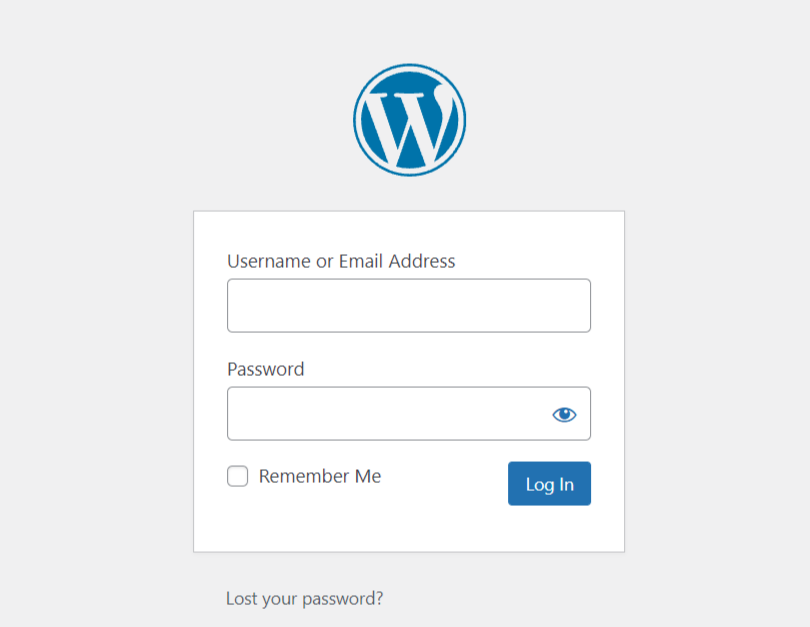
The above URLs should work in 99% of the cases however, if for any reason they don’t work don’t get scared. Try the below URL:
www.example.com/wp-login.php
(remember to replace example.com with your actual domain name)
The above URLs hold true for WordPress installations at the root or directory level but there could be instances where WordPress is installed in a sub-directory or on a sub-domain. How to find the admin link now? Don’t worry, it is still pretty simple.
If WordPress is installed in a sub-directory such as or /test/, then you can access the admin login page using the structure below:
www.example.com/test/wp-admin/ or
www.example.com/test/login/
Once you log in, you will be taken to the WordPress dashboard of the site located in sub-directory.
If your WordPress installation is on a sub-domain, you can access your admin login page using the below structure:
subdomain.example.com/login/ or
subdomain.example.com/wp-login.php
When you log in, you will be redirected to the WordPress dashboard of the site located in the sub-domain.
Hope this artical helped you in finding your WordPress admin link!!